
Instructions, formatting and more
A chart doesn't have to be only chords and lyrics. This chapter shows what else you can write in the Editor, each time with the result on the Stage next to it.
Instructions for the band
A {comment: ...} line becomes an instruction in italics, quieter than the lyrics. A {highlight: ...} line sits in a coloured box, so nobody misses it.
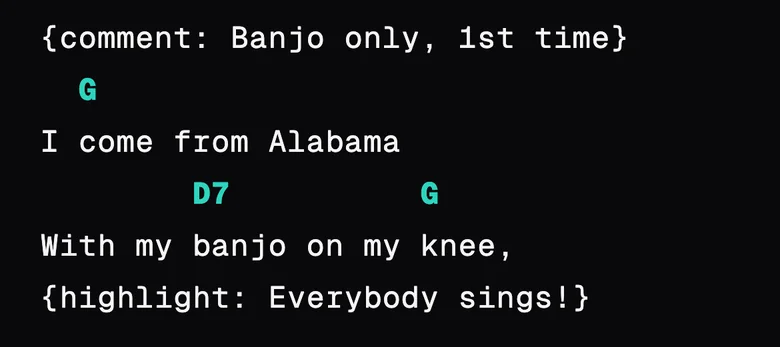
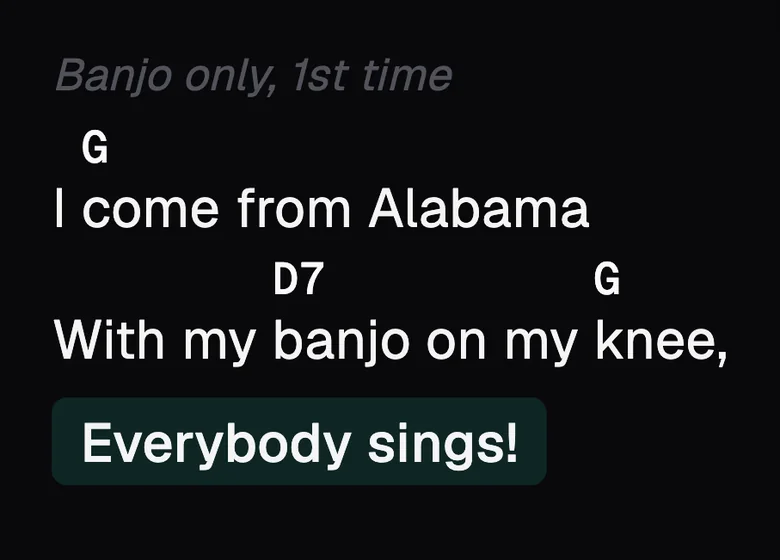
A reminder among the chords
On the chord line, anything in brackets is a reminder, not a chord: (pause), (slow down). So is a word that starts with an asterisk: *Riff. The reminder shows in italics among the chords and never changes when you transpose.
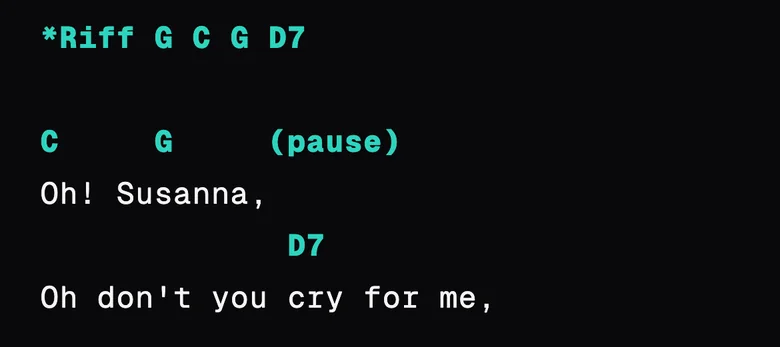
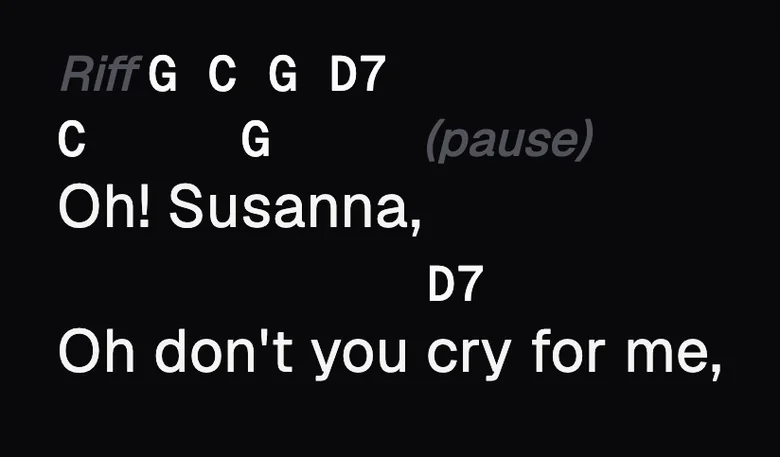
A note only the Editor shows
Start the line with #. It stays in the song and shows in the Editor, but not on the Stage. Use it for where the chart came from, or something the band agreed at rehearsal.
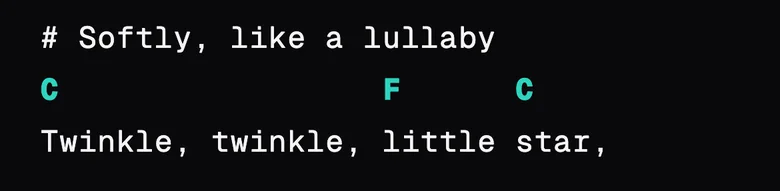
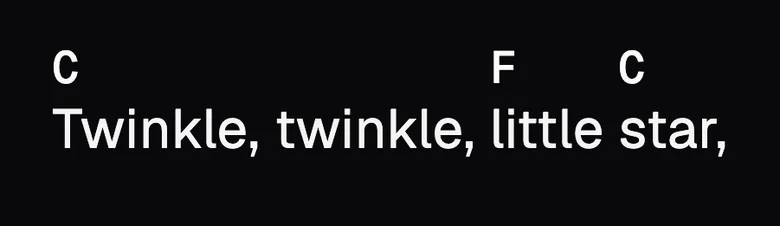
For a note you want to see while you play, without it being part of the chart, use Advanced › Private notes. On the Stage it opens from ⋯, under Private notes.
Bold, italics, underline and colour
A mark at the start of the line changes the whole line:
*for bold/for italics!for bold italics_to underline&red:for a colour (red, orange, yellow, green, teal, cyan, blue, purple, magenta, pink, brown, gray, black, white, or a code like#FF8800)>yellow:for a highlighter, in the same colours^1.5:for bigger text (^2:doubles it)$Georgia:for another font on that line
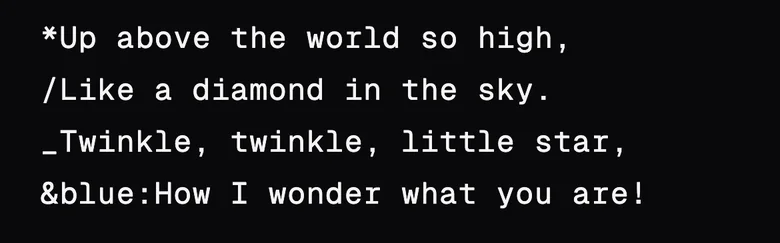
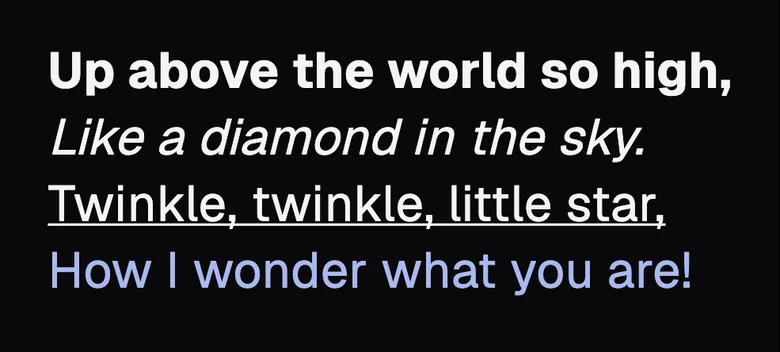
The marks add up: !&red: makes a line bold, italic and red.
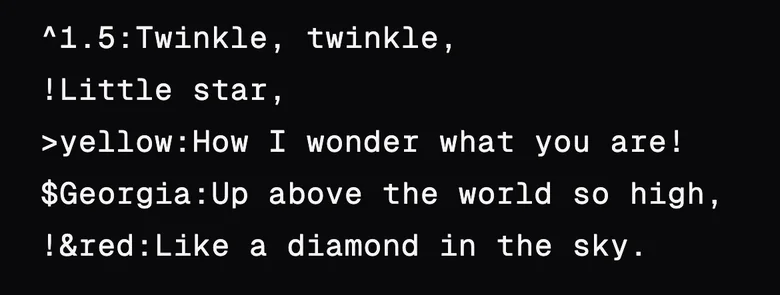
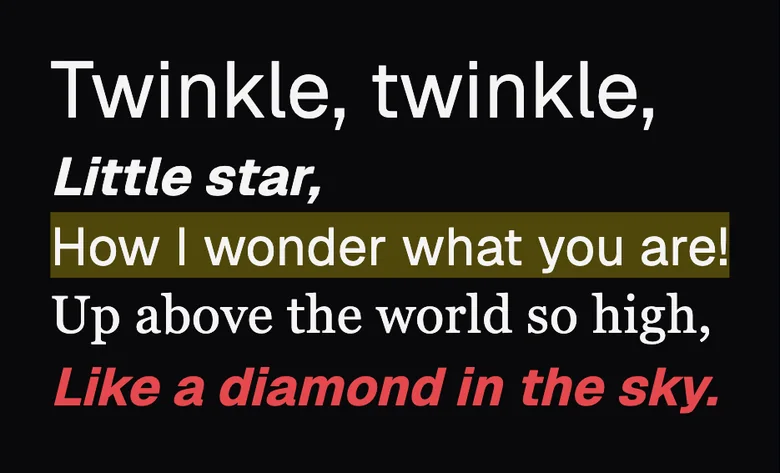
To change just part of a line, put it between < and >, with the mark right after the <: <*bold>, </italics>, <_underlined>, <&red:red>, <>yellow:marked>.
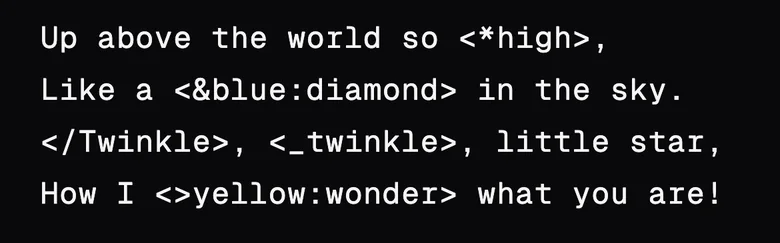
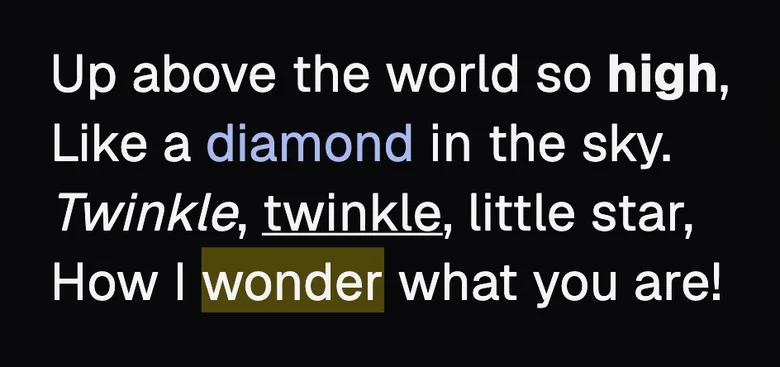
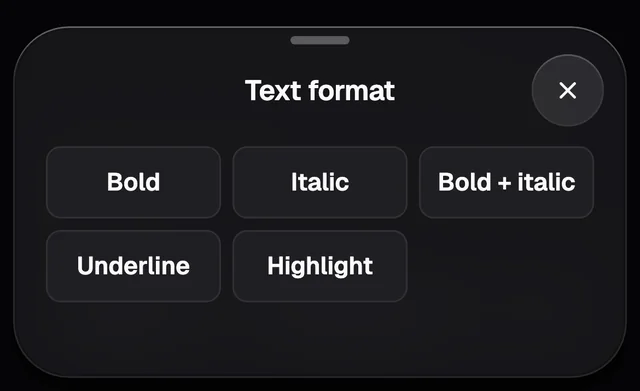
You don't need to learn the marks. Select the text, tap Aa on the bar above the keyboard and pick the style. With nothing selected, the style goes on the line where the cursor is.
Repeats
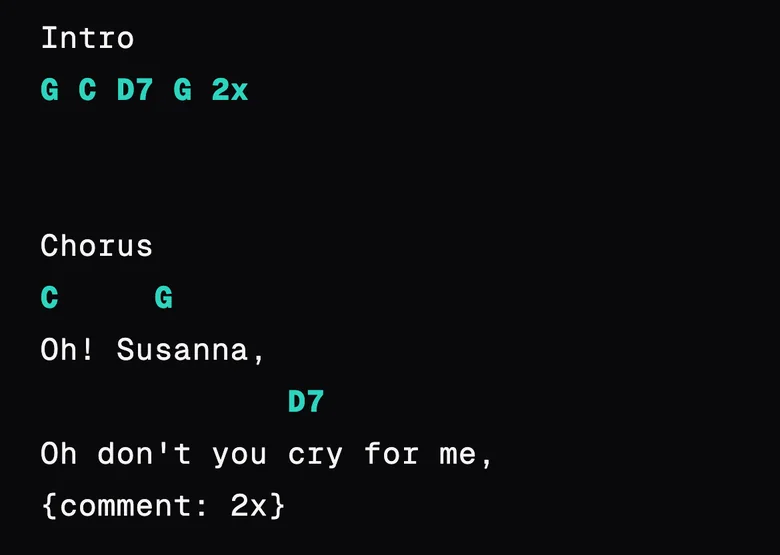
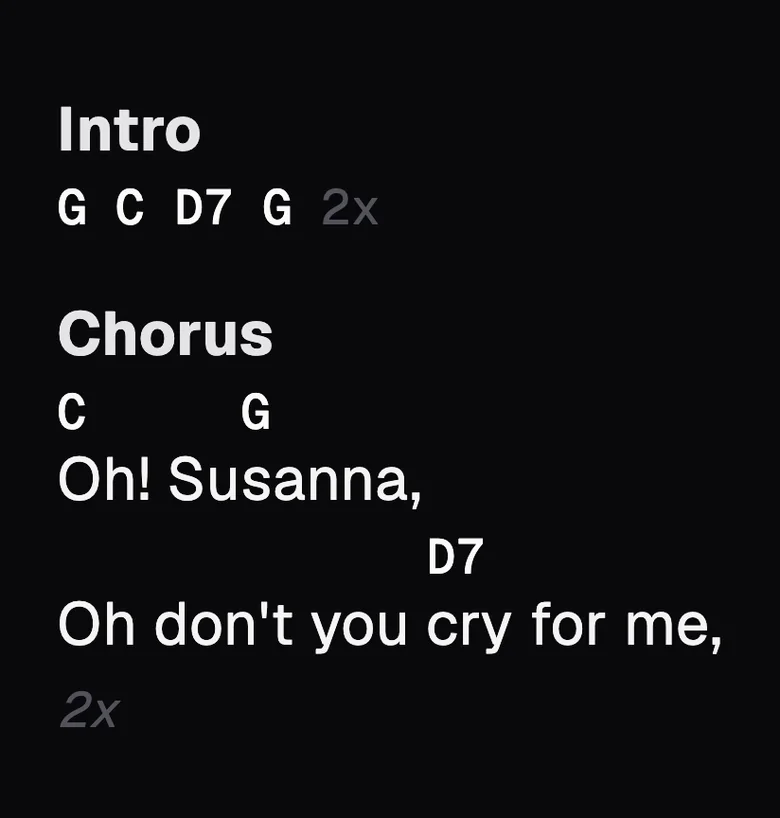
To repeat a line of chords, write 2x at its end. To repeat a whole part, add a {comment: 2x} line at the end of the part.
Bars
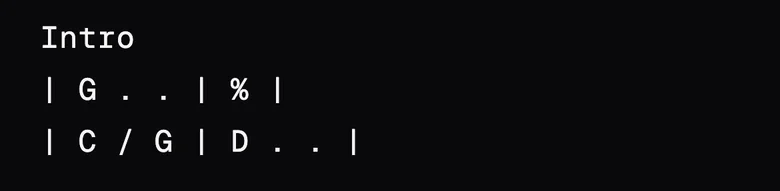
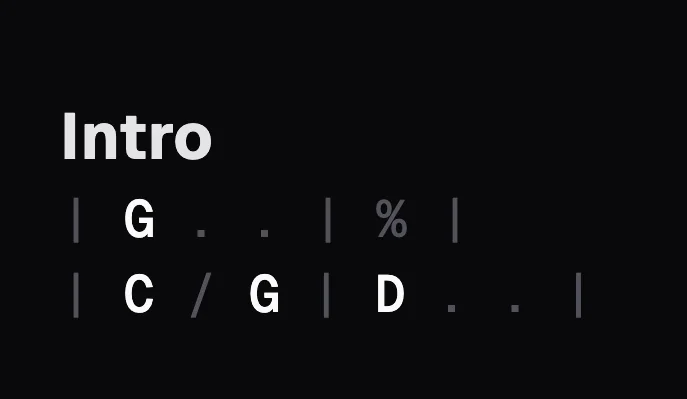
A line with bar lines becomes a line of bars: one chord per bar, and a dot (or a slash, /) for each beat it carries on. % repeats the bar before. On the Stage the chords are coloured, and the bar lines and dots stay quiet.
Guitar tab
Write Tab on a line of its own and the tab lines under it. On the Stage the tab uses a fixed-width font, so the columns stay lined up, and you can drag it sideways when it's long.
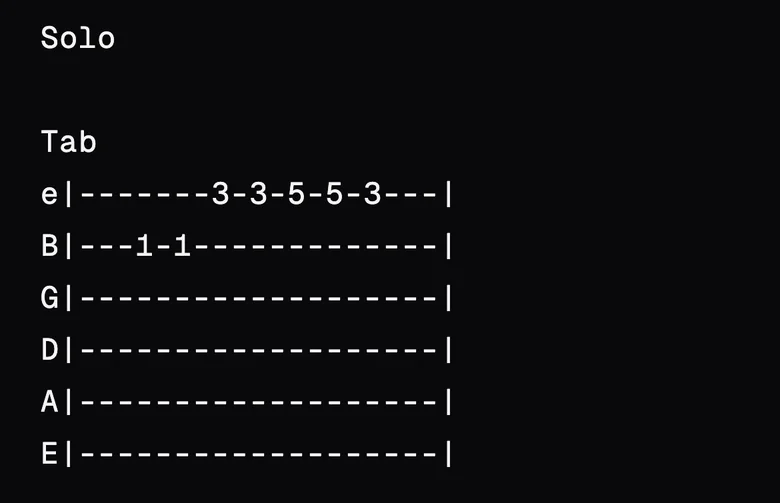
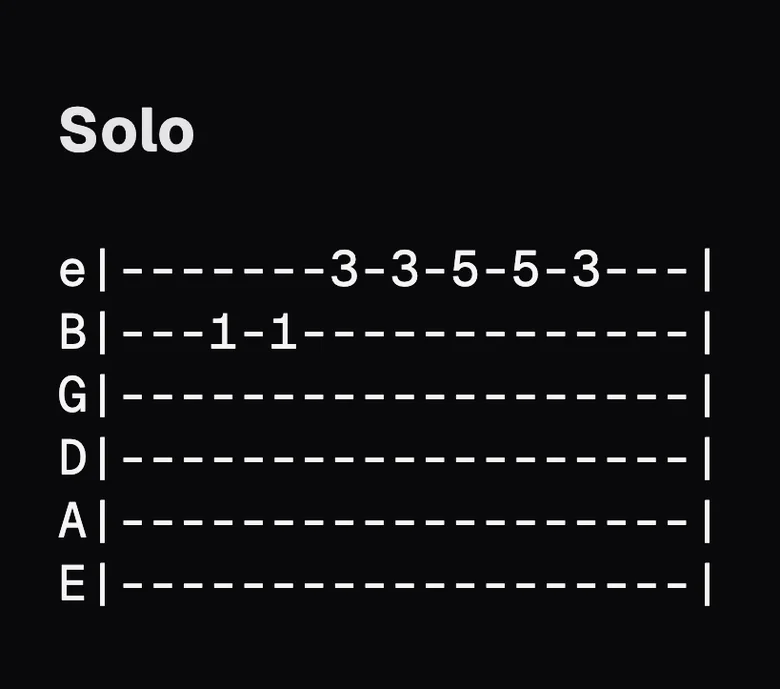
The tab doesn't show its own name on the Stage. If you want a heading over it, put a part before it, such as Intro or Solo.
The tag palette
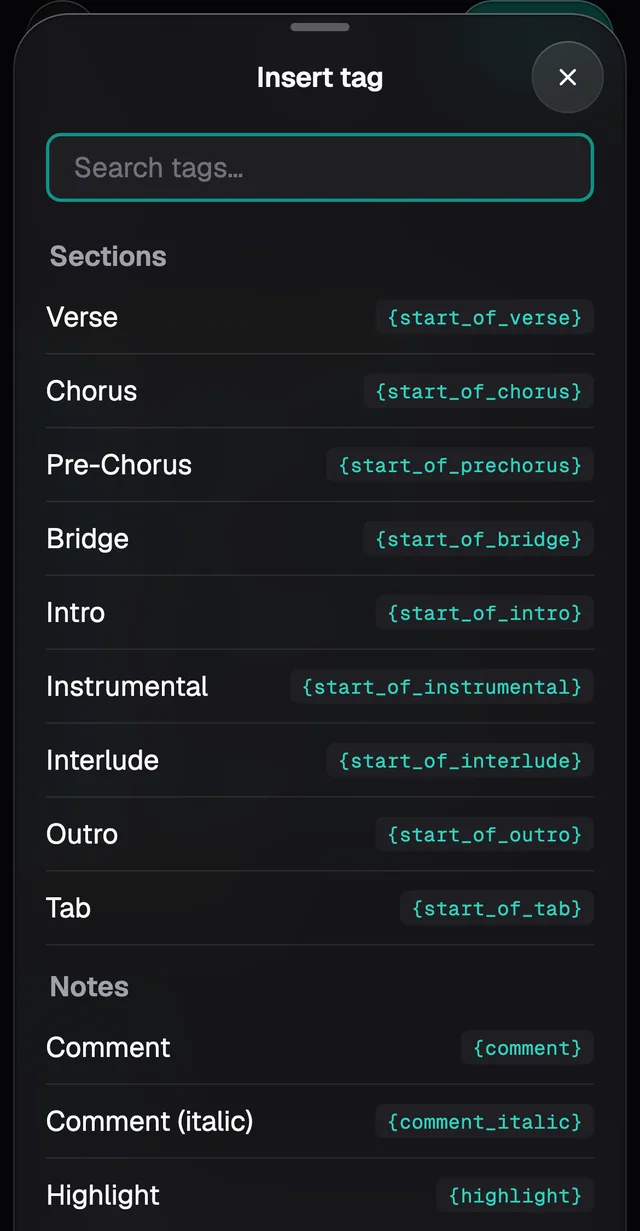
In the ChordPro view, the + Tag… button sits under the chart. It lists everything ChordPro can mark: parts, comments, highlights and song details. Tap a tag and it goes in at the cursor.
Clean up pasted text
If you pasted a chart copied from a website straight into the Editor, open Advanced and tap Clean up pasted text. GraceNote tidies the text the way it does when it imports a song: [Chorus] becomes a part, (2x) becomes an instruction, Key: G fills in the key if it's empty, and the chords above the lyrics land in the right place.
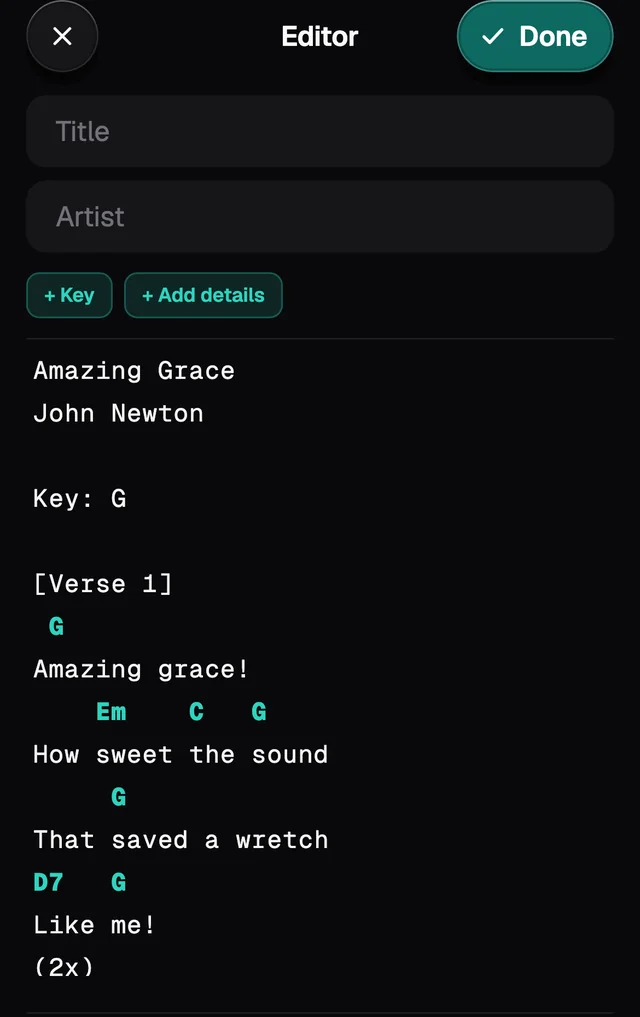
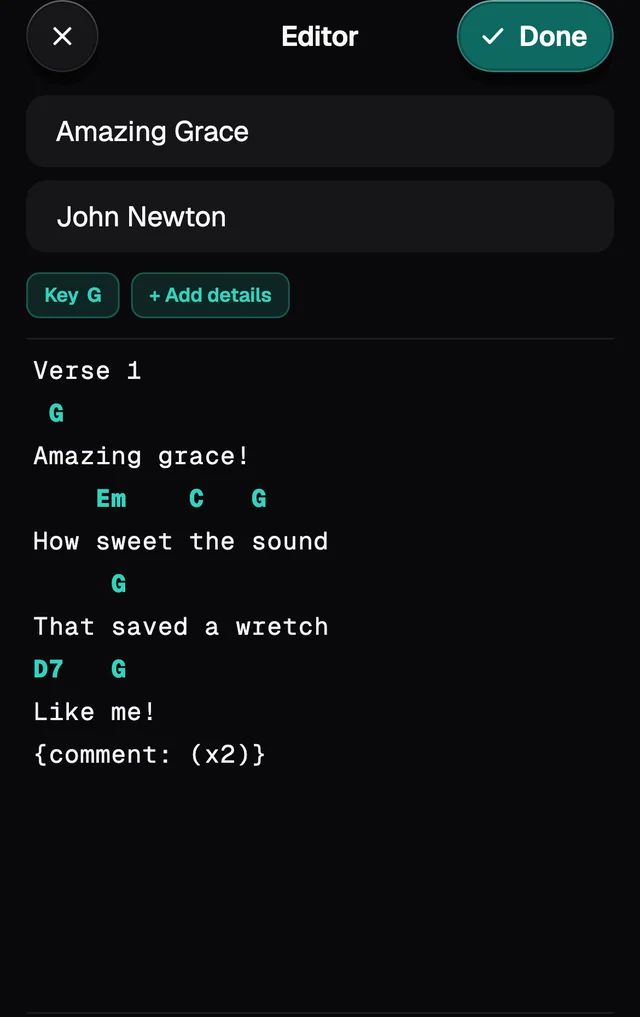
The first lines with no chords, before the chart starts, become the title and artist and leave the chart. For a new song, the shorter way is + › Paste chart, which shows a preview before saving (see Adding songs).
Search and replace
Advanced › Search & replace swaps one piece of text for another across the whole chart at once. It works on lyrics and chords, and it tells capitals from lower case.
Copyright and CCLI
Whatever you write in Advanced › Copyright shows at the end of the chart on the Stage, after a "©". The CCLI number goes in from the ChordPro view, on a {ccli: 1234567} line, and shows at the end of the chart as "CCLI Song #1234567". When a song comes from a site that gives these details, GraceNote fills both in.