
The Stage
The Stage is the screen a song opens on when you play it. The chart fills the screen, and the controls get out of the way with a tap.
Opening a song on the Stage
Tap a song in the Library. It also opens on the Stage when you play a set, open a song from a book, pick one under Perform › Recently played, and right after you import it.
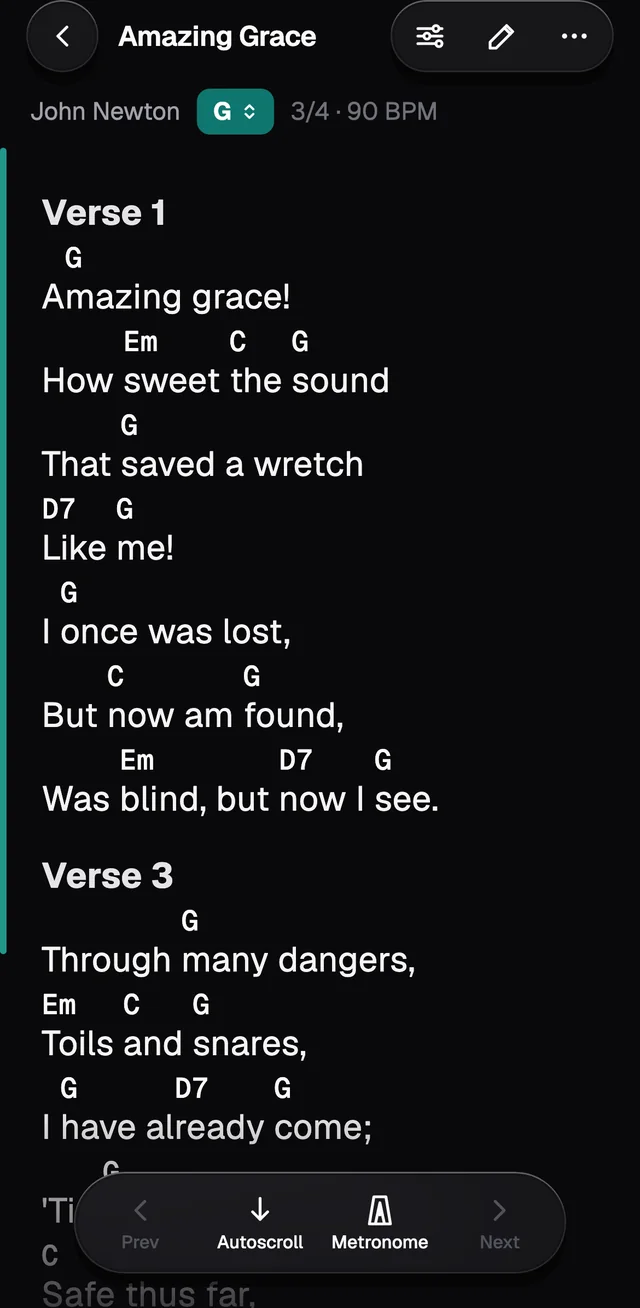
At the top are the back button, the song's name and three buttons: Display & Style, the pencil to edit and ⋯. Right under them come the artist, the key button and, when the song has them, the time signature, BPM and capo.
The floating capsule at the bottom has Prev, Autoscroll, Metronome and Next. Prev and Next only work in a set or a book.
Gestures
- Tap the chart to hide the top bar, and tap again to bring it back.
- Spread two fingers to make the text bigger, and pinch to make it smaller. The size is kept for this song.
- In a set or a book, swipe sideways to go to the next song or back to the one before.
Transposing
Tap the key button. The big letter shows the key of the shapes you play, and under it GraceNote says which key the song sounds in.
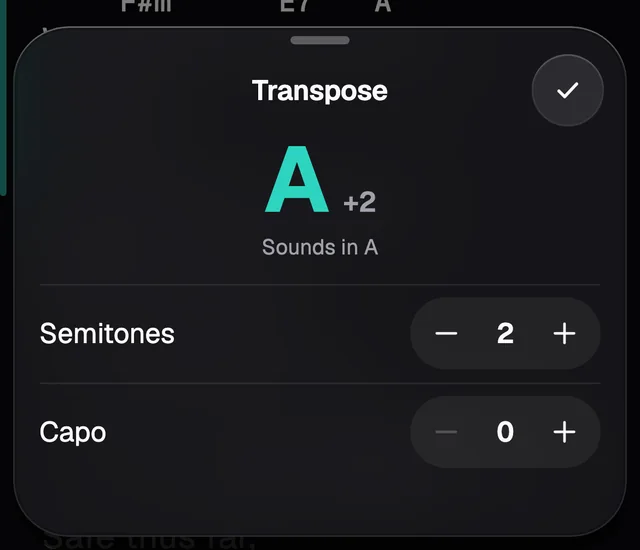
- Semitones moves the song up or down, up to 7 either way. The written chart doesn't change: only the Stage shows the chords transposed. GraceNote remembers the transpose the next time you open the song.
- Capo changes the capo and rewrites the chords so the song still sounds the same. With capo 2, a song in D shows C shapes.
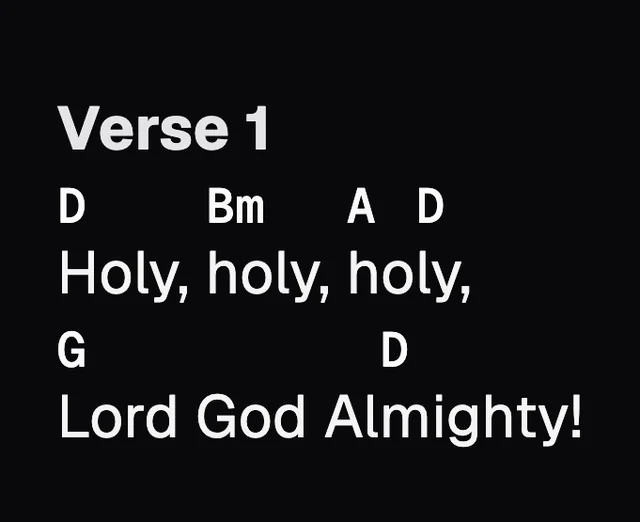
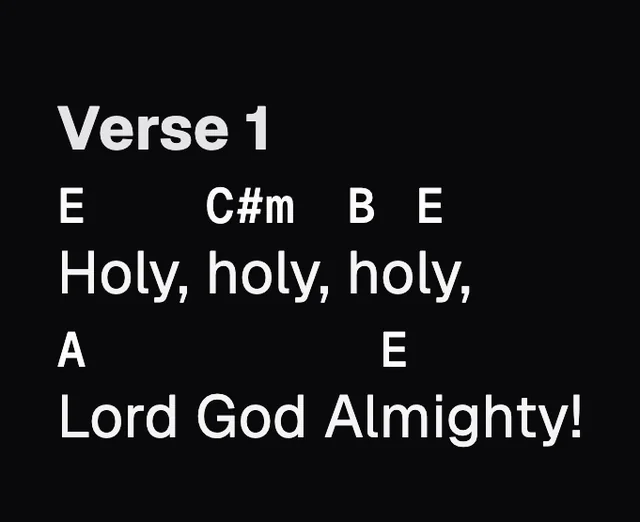
Keys follow the circle of fifths: G with capo 3 sounds in Bb, never A#.
Autoscroll
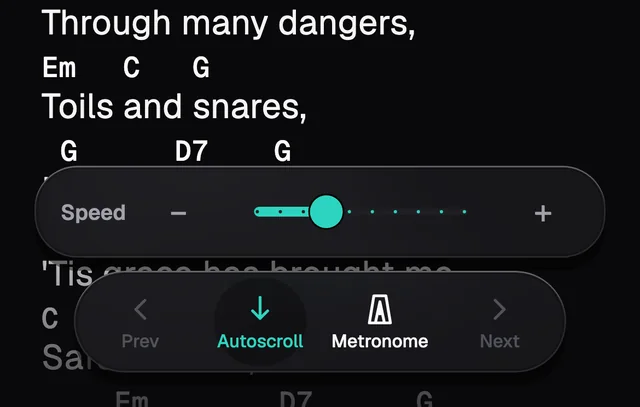
Tap Autoscroll. The chart starts scrolling from where you are and stops on its own at the end. The tray that shows up above the buttons sets the Speed, with − and +. Any touch on the chart stops the scrolling.
Metronome
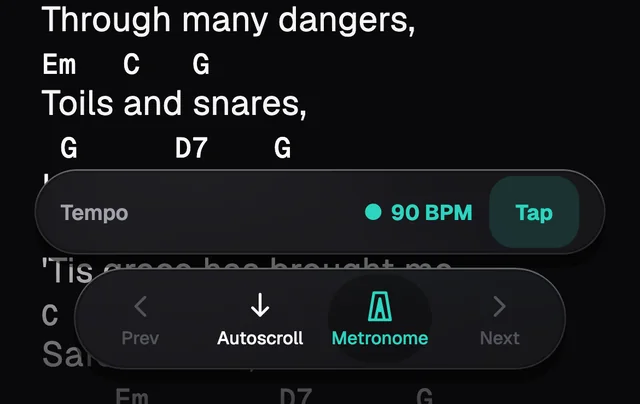
Tap Metronome. It clicks at the song's BPM (120 when the song has none), stresses the first beat of the bar and plays even with the iPhone on silent. To set the tempo on the spot, tap Tap a few times in time. A tapped tempo isn't saved to the song.
Display & Style
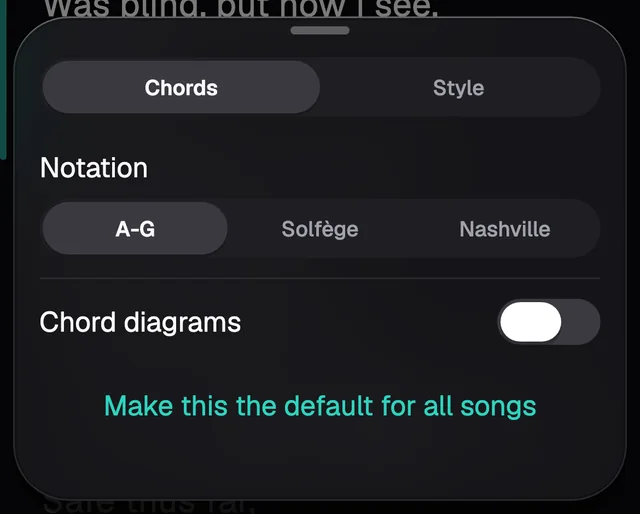
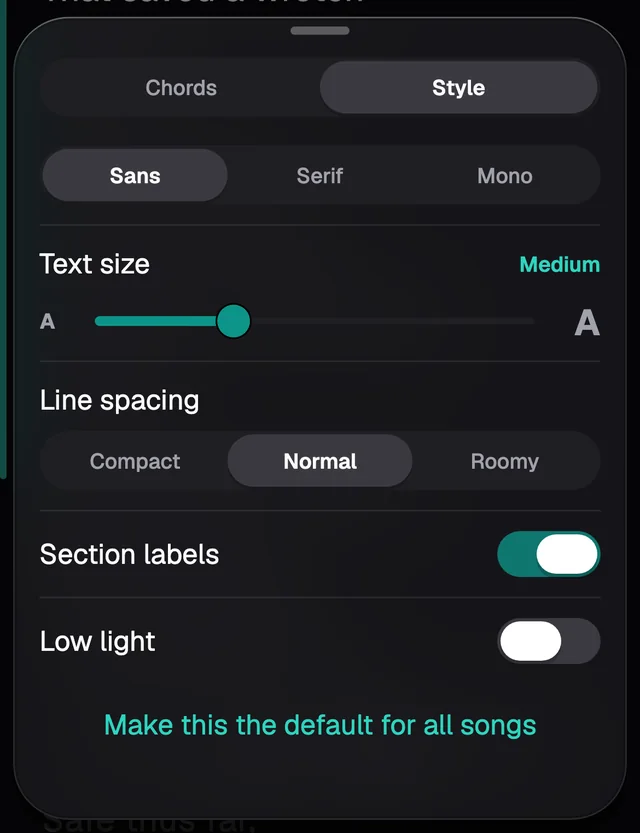
The first button at the top opens Display & Style, with two tabs, Chords and Style. Each change shows at once and is kept for this song. To give every song the same look, tap Make this the default for all songs.
Notation
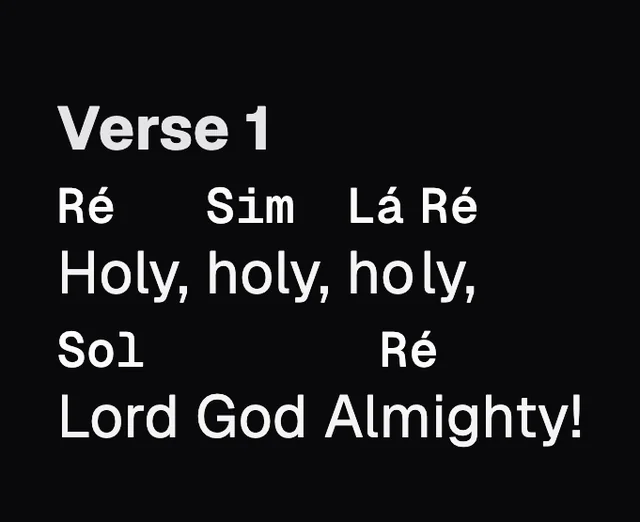
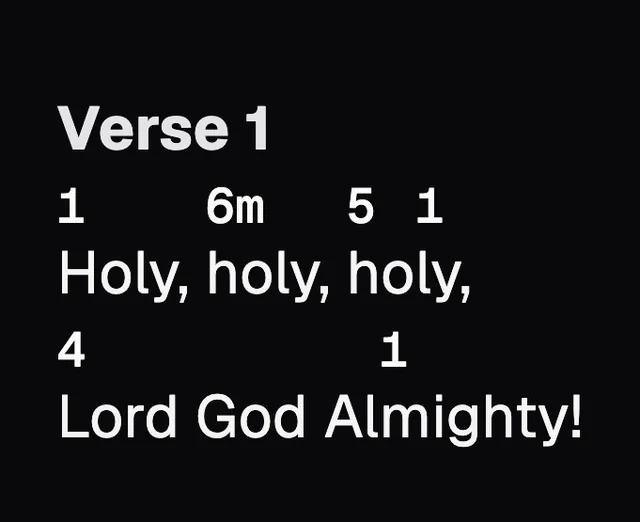
A-G is the usual way. Solfège swaps the letters for note names: Dó, Ré, Mi. Nashville shows each chord as a number in the song's key: in D, D becomes 1, G becomes 4 and A becomes 5. Only what the Stage shows changes; the written chart stays as it is.
Chord diagrams
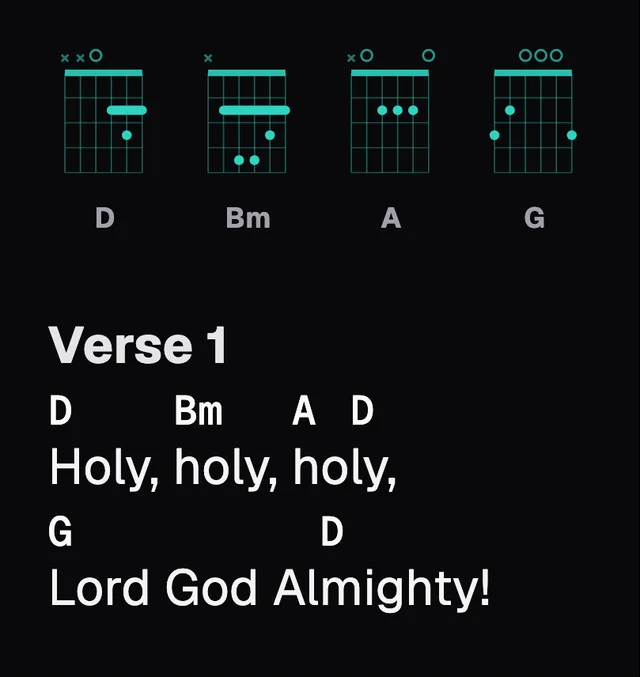
Turns on a row of diagrams at the top of the chart, one for each chord in the song. Pick Guitar or Piano, whether they sit above or below the chart, and how many fit on a row. For now the diagrams are only right with A-G notation.
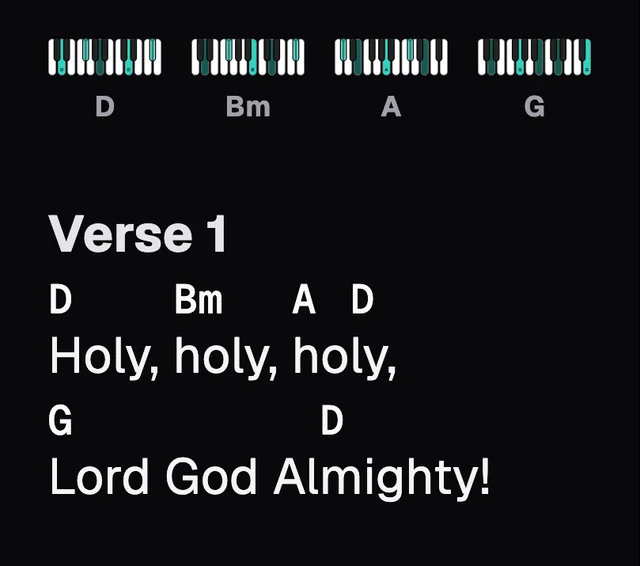
Chord layout
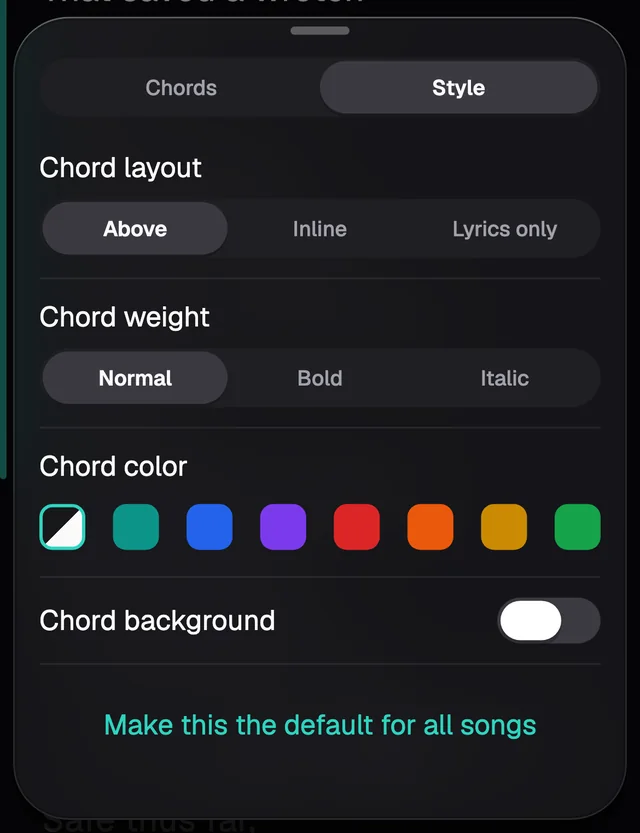
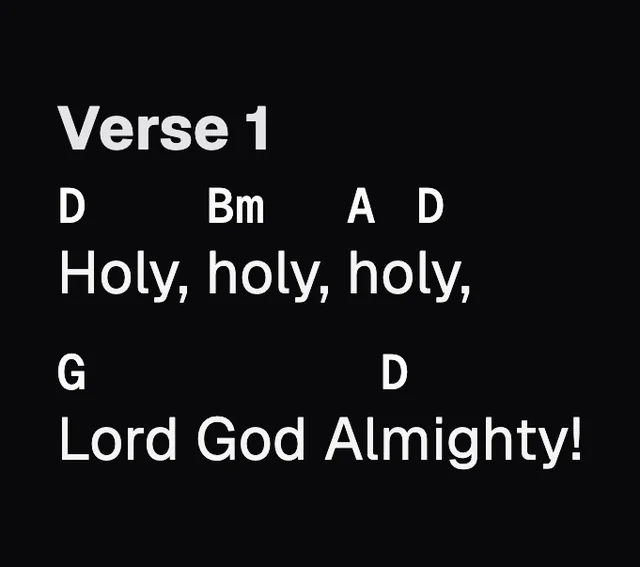
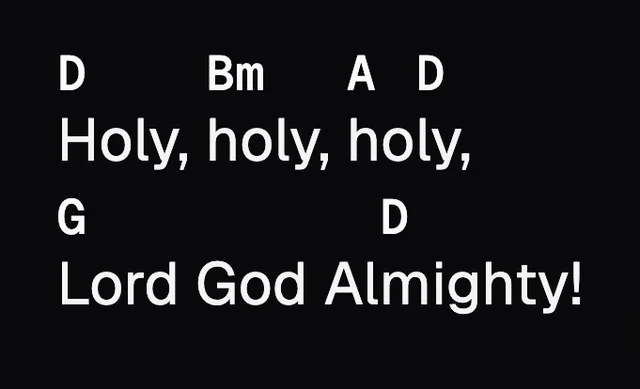
Above puts the chords over the lyrics. Inline puts each chord in square brackets inside the lyrics. Lyrics only hides the chords, which suits singers. Bar lines still show in all three.
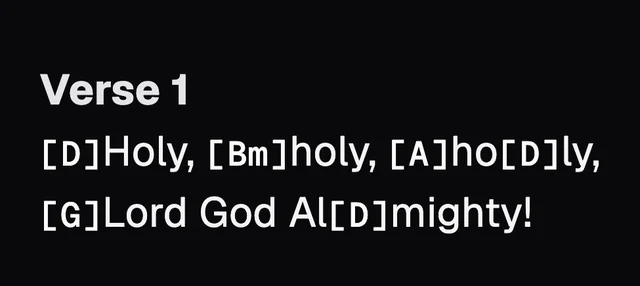
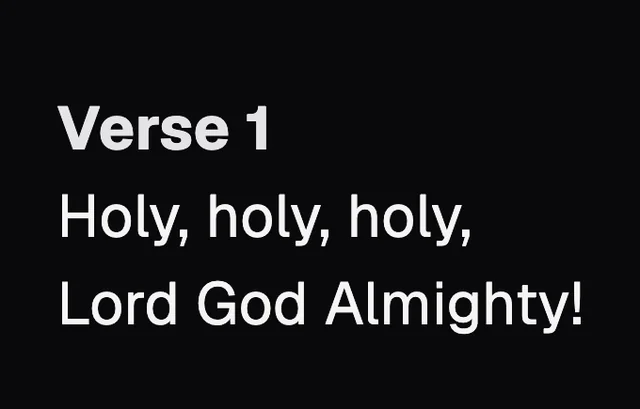
The chord: weight, colour and background
Make the chords Bold or Italic, pick a Chord color (Auto follows the theme) and turn on Chord background for a coloured pill behind each one.
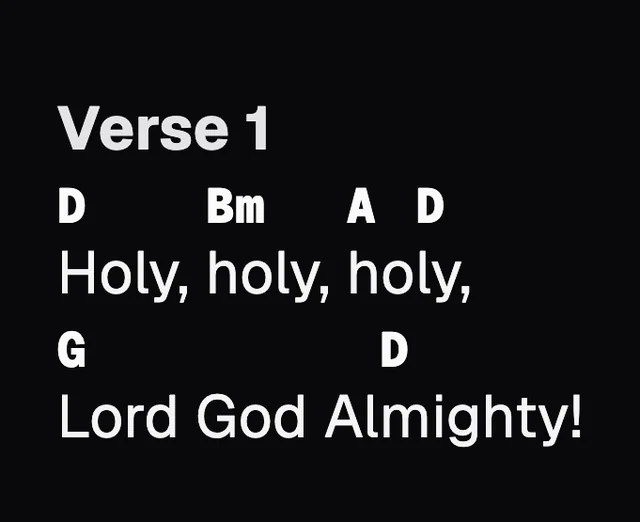
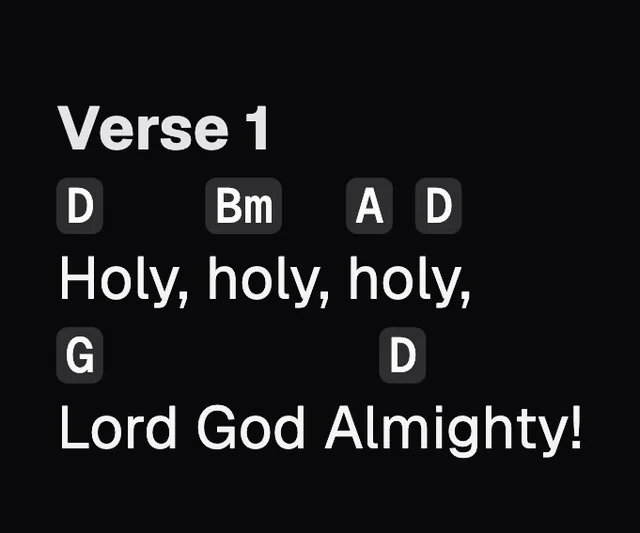
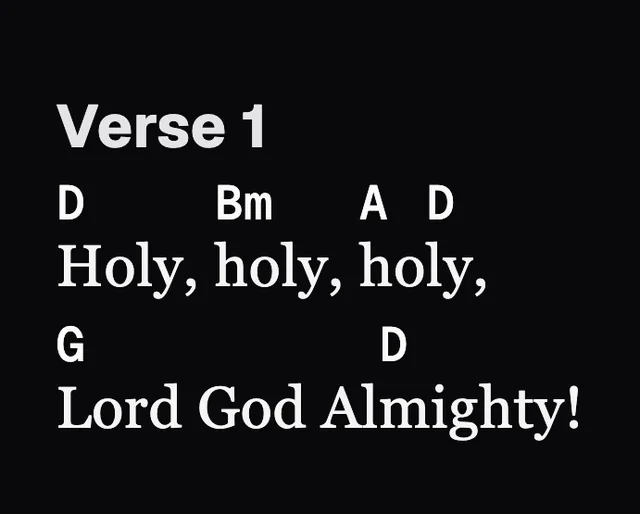
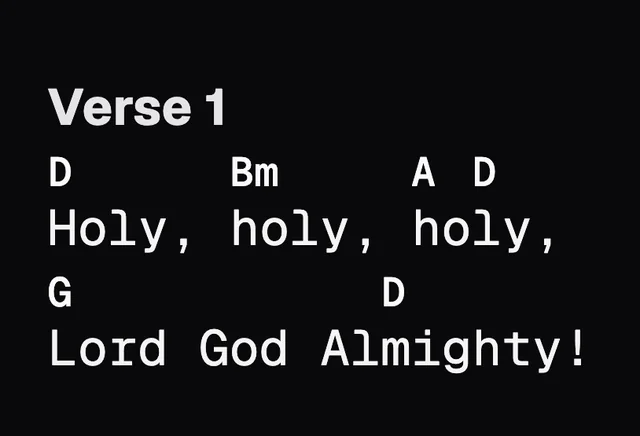
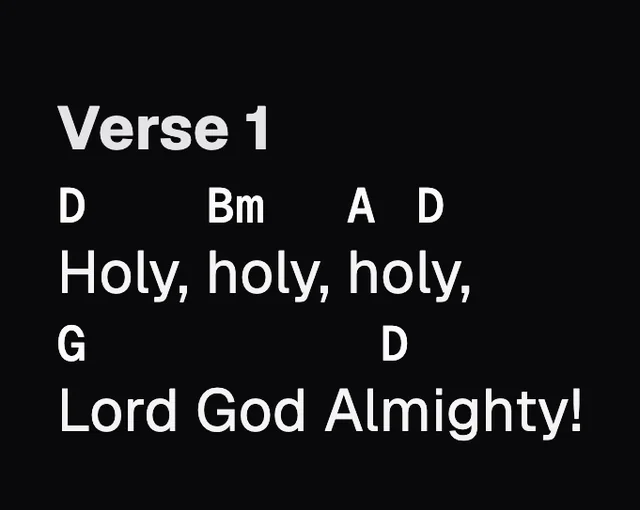
Font, size and spacing
The lyrics Font can be Sans, Serif or Mono; the chords stay in a fixed-width font. Text size is the same size you change with your fingers. Line spacing packs the lines closer or spreads them out.
Section labels, columns and low light
- Section labels hides the names of the parts. The space between them stays.
- Columns only shows on an iPad: with 2, the chart splits into two columns.
- Low light dims the whole screen, for a dark stage. It only lasts while the song is open.
The ⋯ menu
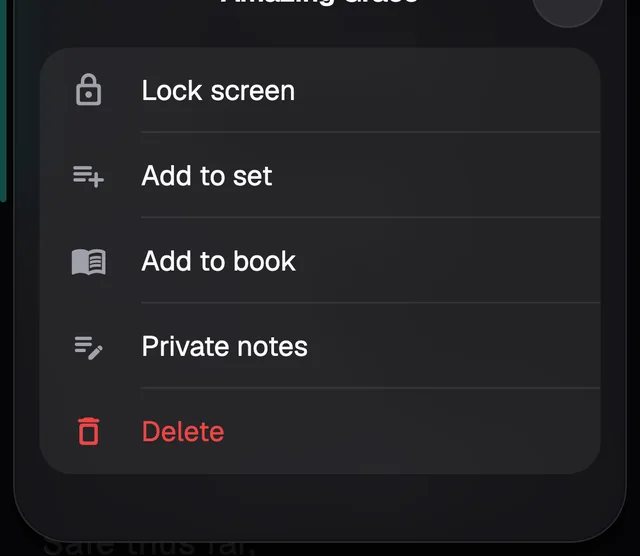
- Lock screen makes the chart ignore touches, so a bump doesn't stop the scrolling or move the chart. Pinching and the buttons still work. To unlock, tap the note with the padlock at the top.
- Add to set and Add to book.
- Private notes: your own notes, which never show on the chart.
- Delete removes the song at once. There's no undo on the Stage; in the Library there is.
In a set or a book
When you play a set or open a song from a book, the Stage goes from song to song: swipe sideways or use Prev and Next. The capsule shows where you are, such as 2 of 5. Each song opens with its own size, style and transpose, and a song you gave another key in the set opens in that key.
The screen stays on while the Stage is open, song after song. To change that, go to Settings › Stage › Keep screen awake.