
Foot pedal
A foot pedal lets you keep both hands on the instrument. On the Stage it scrolls the chart, starts the autoscroll and changes songs. Away from the Stage it takes you there.
The pedal is a GraceNote Pro feature. In the free app, Settings › Pedal shows the Pro offer.
GraceNote works with any pedal that sends keys or MIDI messages. A keyboard pedal behaves like a keyboard: AirTurn, PageFlip, Donner, iRig BlueTurn and the like. A MIDI pedal sends MIDI messages, over a cable or over Bluetooth. Many pedals can do both, depending on the mode you choose on the pedal or in its app. Your pedal's manual says how to change the mode.
Pick the section for your connection below. Once connected, every pedal does the same things, described in What each switch does further down.
Keyboard pedal over Bluetooth
- Set the pedal to a keyboard mode.
- Pair the pedal in your device's Bluetooth settings, the same way as a Bluetooth keyboard.
- Open Settings › Pedal. Use pedal is on by default with Pro.
- Press a switch. Test pedal shows the key it sent and what GraceNote does with it, such as PgDn: Next screen. A key GraceNote has no use for shows as no action in GraceNote: choose a mode on the pedal that sends the arrows, Page Up and Page Down, Space or Enter.
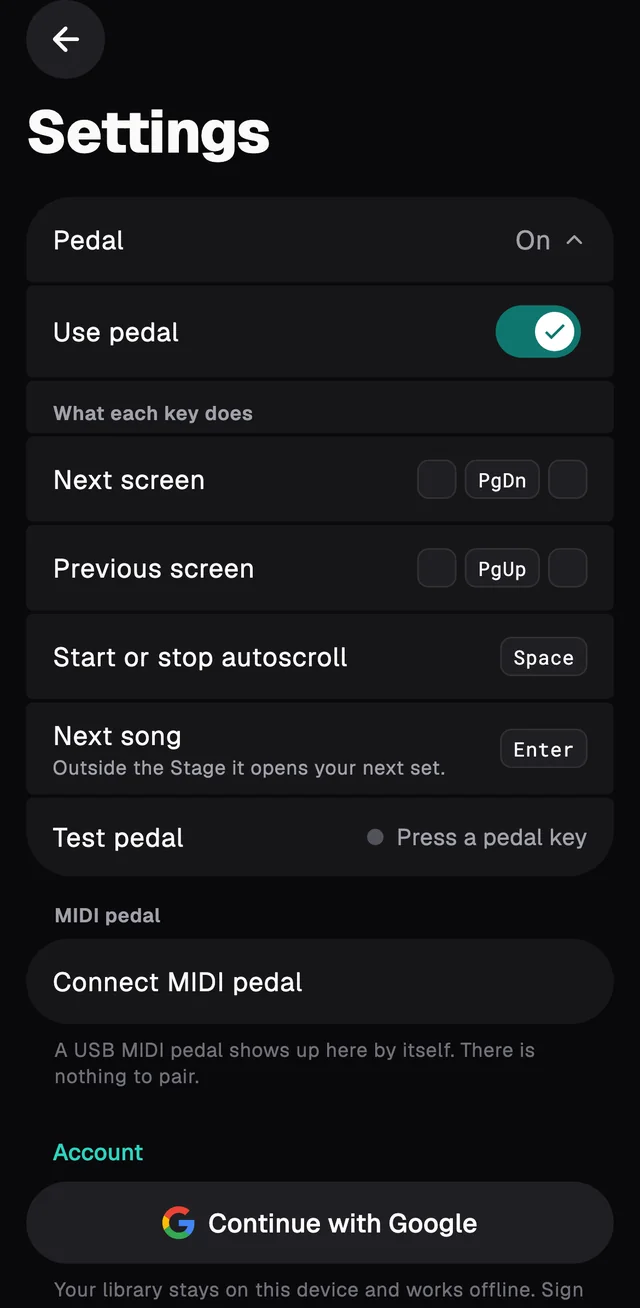
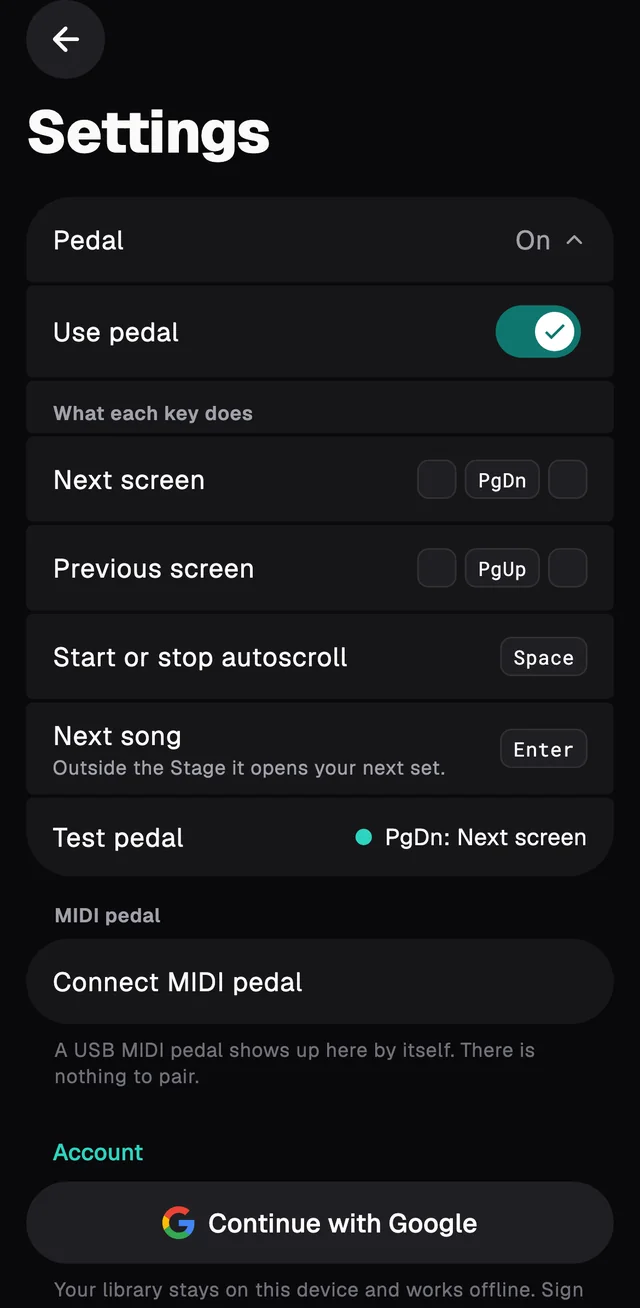
A keyboard pedal with a USB cable works the same way: plug it in, with nothing to pair.
On an iPhone or an iPad, the on-screen keyboard doesn't show while a keyboard pedal is connected. To type, switch the pedal itself off.
MIDI pedal over a cable
- Set the pedal to a MIDI mode.
- Connect the pedal to your device with a USB cable, directly or through an adapter for your device's port.
- Open Settings › Pedal. The pedal shows in the MIDI rows, under the keys, with nothing to pair. Tap its name to connect.
- Press a switch and check Test pedal.
This works on iPhone, iPad and Android.
MIDI pedal over Bluetooth
Set the pedal to a MIDI mode before you start. The steps depend on your device.
On an iPhone or iPad
- Pair the pedal in the system's Bluetooth settings.
- Go back to GraceNote. The pedal shows in Settings › Pedal as connected, with nothing else to do.
- If it does not, tap Connect MIDI pedal. A system sheet lists the Bluetooth MIDI pedals nearby. Tap yours, then close the sheet.
A pedal that shows as Offline in that sheet is not paired yet, or is not in a MIDI mode.
On Android
- Open Settings › Pedal and tap Connect MIDI pedal.
- The first time, GraceNote asks for the Nearby devices permission.
- Tap your pedal in the list.
This works on Android 12 and newer. On an older Android, use a keyboard pedal or a MIDI pedal over a cable.
Connecting and disconnecting
GraceNote connects again to the MIDI pedal you used last. On Android, a Bluetooth MIDI pedal connects again after you tap Connect MIDI pedal; a USB pedal, and a Bluetooth pedal on an iPhone or iPad, connect by themselves. To let go of it, tap Disconnect. The pedal icon on the Stage shows as soon as a MIDI pedal connects, and shows a slash if it drops.
What each switch does
This is the same for every pedal, keyboard or MIDI. On the Stage:
- Next screen: Down arrow, Page Down or Right arrow. It scrolls one screen, and the last line you read stays at the top.
- Previous screen: Up arrow, Page Up or Left arrow.
- Start or stop autoscroll: Space.
- Next song: Enter, when the song is open from a set.
At the end of a song in a set, one more press of Next screen goes to the next song. At the top, one more press of Previous screen goes back to the previous one. The next song opens at its top, and the previous one opens where you left it, so an accidental advance is undone with one press. At the last song and at the first, nothing happens. Holding a switch down never skips songs. When you leave a song, its autoscroll stops.
After the first press, a small pedal icon shows next to the key button. It lights up on each press. Tap it to open Settings › Pedal.
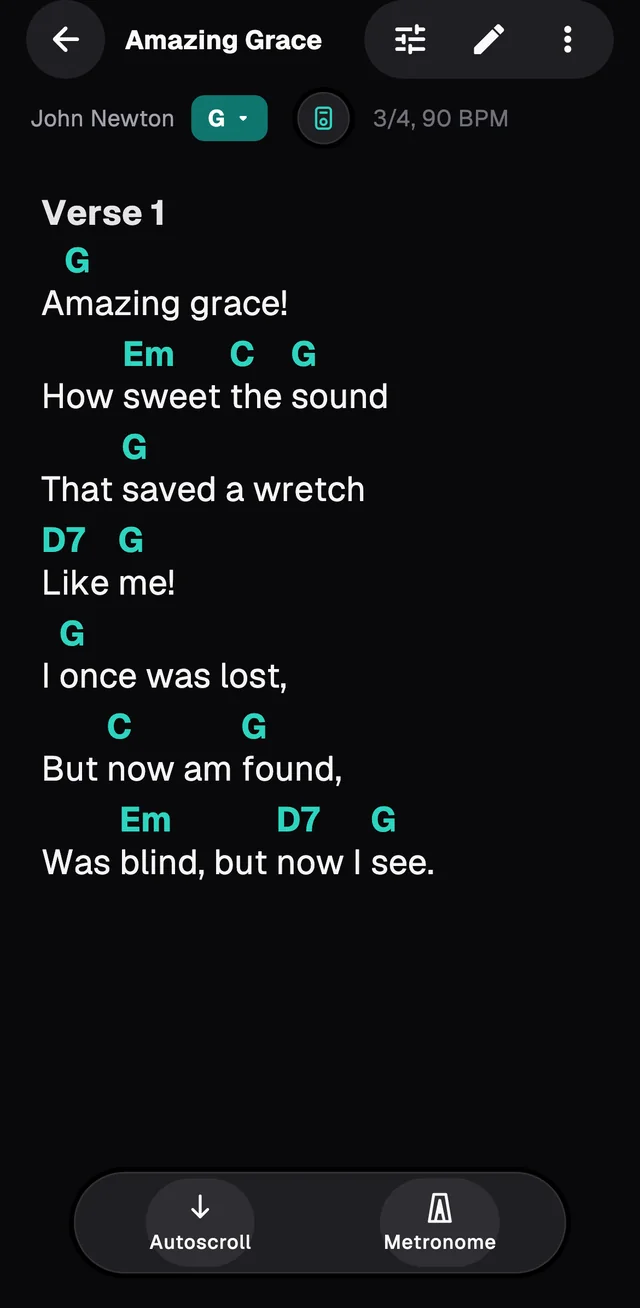
Away from the Stage, Next song works like this. On the Library it goes to Sets. On Sets it opens your next set (the one at the top, or the first in the list). On a set it plays the set, the same as the Play button. Previous screen on a set goes back to Sets. Nothing happens while you type, or while a menu or a sheet is open.
MIDI messages and Teach pedal
GraceNote listens for Control Change 20, 21, 22 and 23: previous screen, next screen, autoscroll and next song. If your pedal sends something else, use Teach pedal, which shows only while a MIDI pedal is connected. Tap an action, then press the switch you want for it. GraceNote shows the message it received and keeps it.
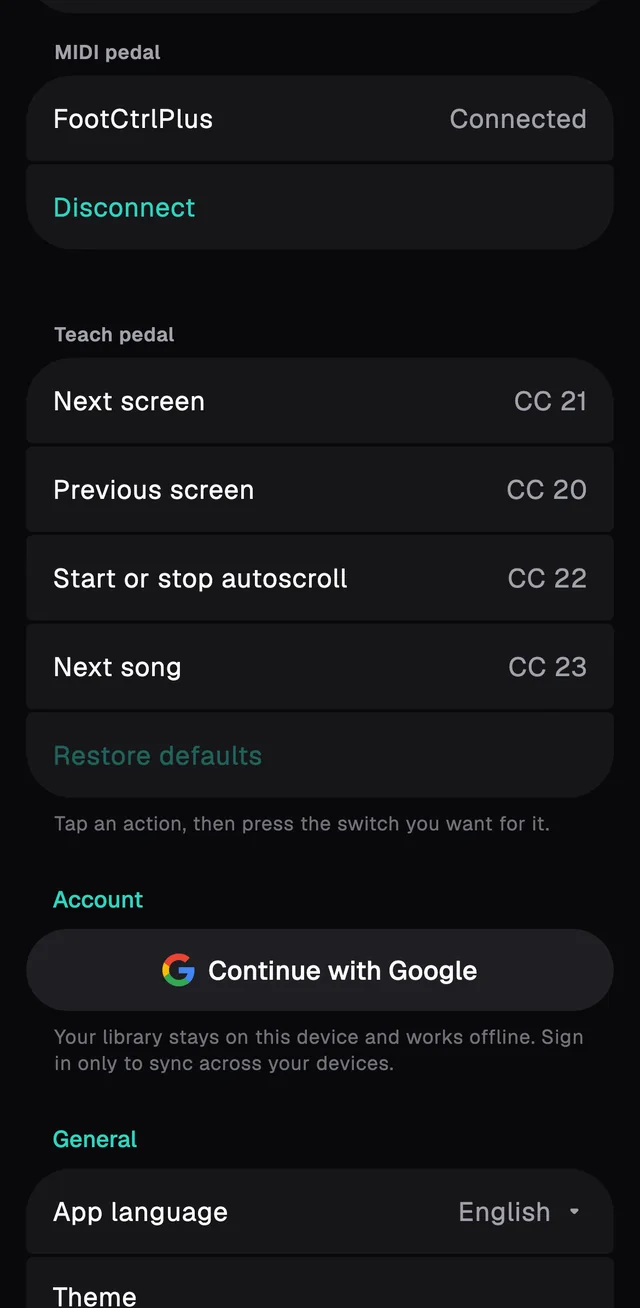
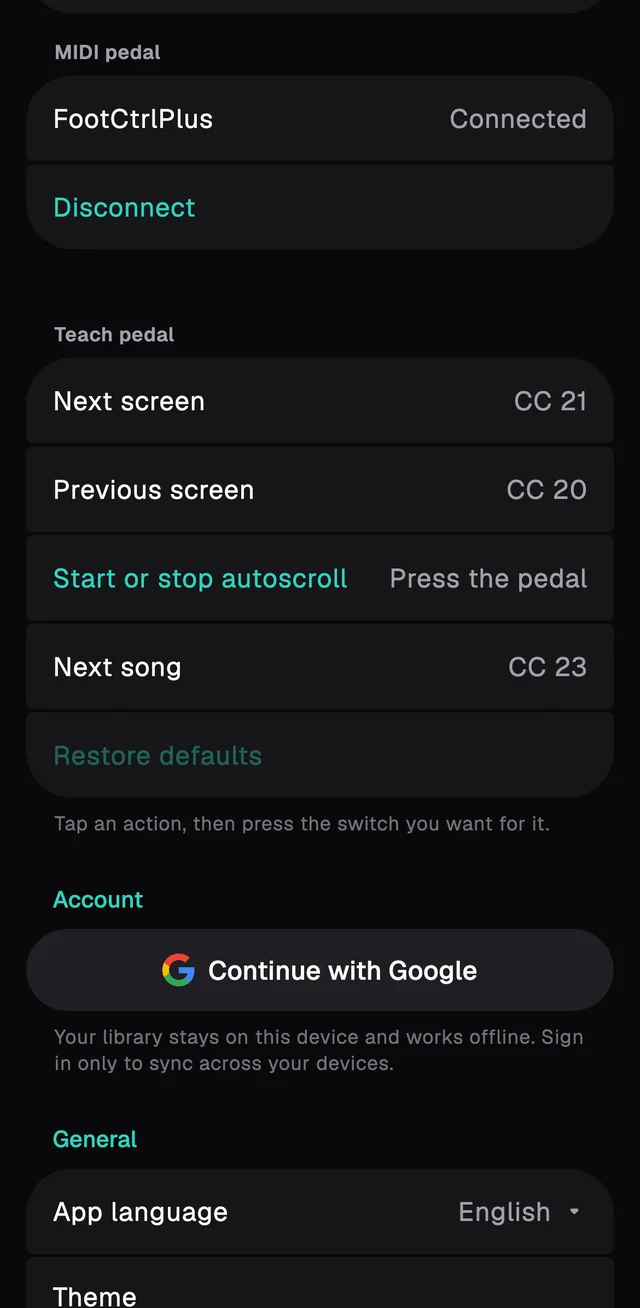
Restore defaults gives the four messages back. Erase what I taught removes them all, and no switch does anything until you teach the pedal again or restore the defaults. A switch that sends one message when you press and another when you let go counts as one press.
If a switch works only every second press, it is in a toggle mode. Set it to momentary on the pedal or in its app.
Example: M-VAVE Chocolate Plus
An example with a pedal we tested. It has four switches, A to D, and you choose its mode in the M-VAVE CubeSuite app. It accepts one connection at a time, so close CubeSuite before you connect it to GraceNote.
- As a keyboard pedal: in CubeSuite, choose the Keyboard B mode. A sends Page Up, B Page Down, C Space and D Enter, that is previous screen, next screen, autoscroll and next song. Then follow Keyboard pedal over Bluetooth.
- As a MIDI pedal: in CubeSuite, choose the Manufacturer mode. It sends Control Change 20 to 23, so there is nothing to teach. Over a cable it shows in Settings › Pedal as SINCO. Follow MIDI pedal over a cable or MIDI pedal over Bluetooth.
If the pedal does nothing
- Press a switch with Settings › Pedal open. Test pedal shows the key or the message, or no action in GraceNote if the pedal is in the wrong mode.
- Check that Use pedal is on, and that you have Pro.
- A pedal keeps one connection. Close the pedal's own app, and any other app that uses it.
- Switch the pedal off and on, or remove it from your Bluetooth settings and pair it again.
- If GraceNote says Bluetooth is off for it, allow Bluetooth for GraceNote in your device's settings.